How to Use Claude Code as a Second Brain (With Obsidian and Your iPhone Captures)
Point Claude Code at an Obsidian vault, give it a CLAUDE.md, and add your iPhone captures through the Nemos MCP server. Step-by-step setup.
Quick answer: Open a terminal in your Obsidian vault folder and run `claude`. Claude Code can then read, write, and reorganize your Markdown notes. Add a CLAUDE.md in the vault root describing your folders and rules, since Claude Code loads it at the start of every session. To bring in phone captures, run `claude mcp add nemos -- npx -y nemos-mcp` and sign in once with your Apple ID.
Key takeaways: - Obsidian stores notes as plain Markdown files in a folder, which is exactly what Claude Code is good at reading and editing. - CLAUDE.md is the most important file in the setup. It is how Claude "remembers" your system between sessions. - Claude Code lives on your computer. Your best ideas often arrive on your phone. - The Nemos MCP server gives Claude Code read access to your Nemos library, including OCR text from screenshots and voice transcripts, and can write notes into your vault.
Why are people using Claude Code as a second brain?
Claude Code was built for software projects, but a codebase and a notes vault look alike to an agent: both are folders of text files with a structure worth keeping consistent. That is the whole trick.
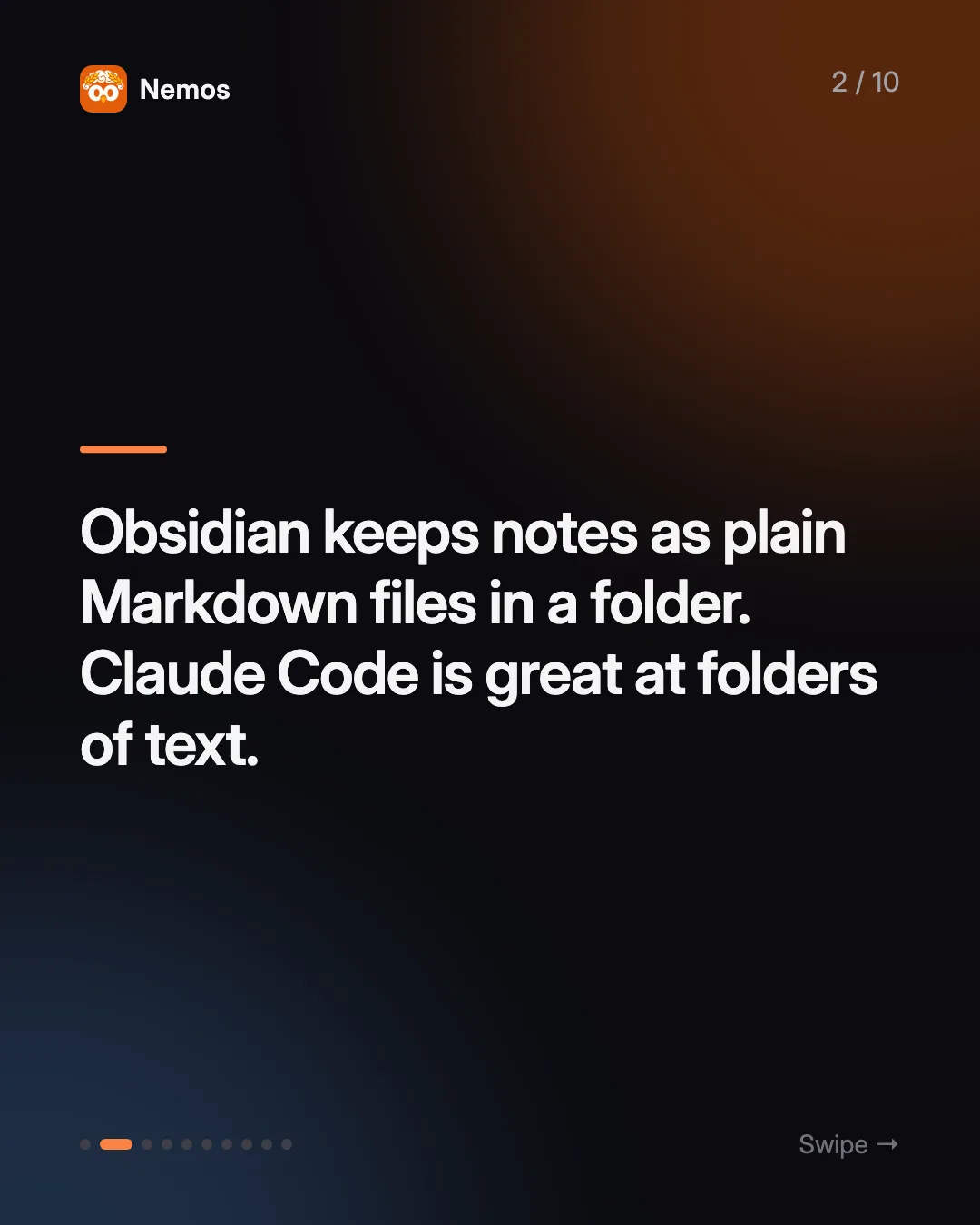
Obsidian stores your notes as Markdown files in a vault, which is a folder on your local file system. Nothing is locked in a database. So when you start Claude Code inside that folder, it can search your notes, summarize a project, rename files to a convention, add backlinks, or draft a new note from five old ones. Obsidian then shows you the result with links and a graph view.
The other reason is memory. Every Claude Code session starts with a fresh context window, but the Claude Code docs describe two ways it carries knowledge forward: CLAUDE.md files you write, and auto memory that Claude writes itself. Both are loaded at the start of every conversation. For a second brain, that means you explain your system once and never again. The piece this setup lacks is mobile capture; later we show how Nemos fills it.
How do you set up Claude Code in an Obsidian vault?
You need Obsidian, Claude Code installed on your Mac or PC, and a vault. Then:
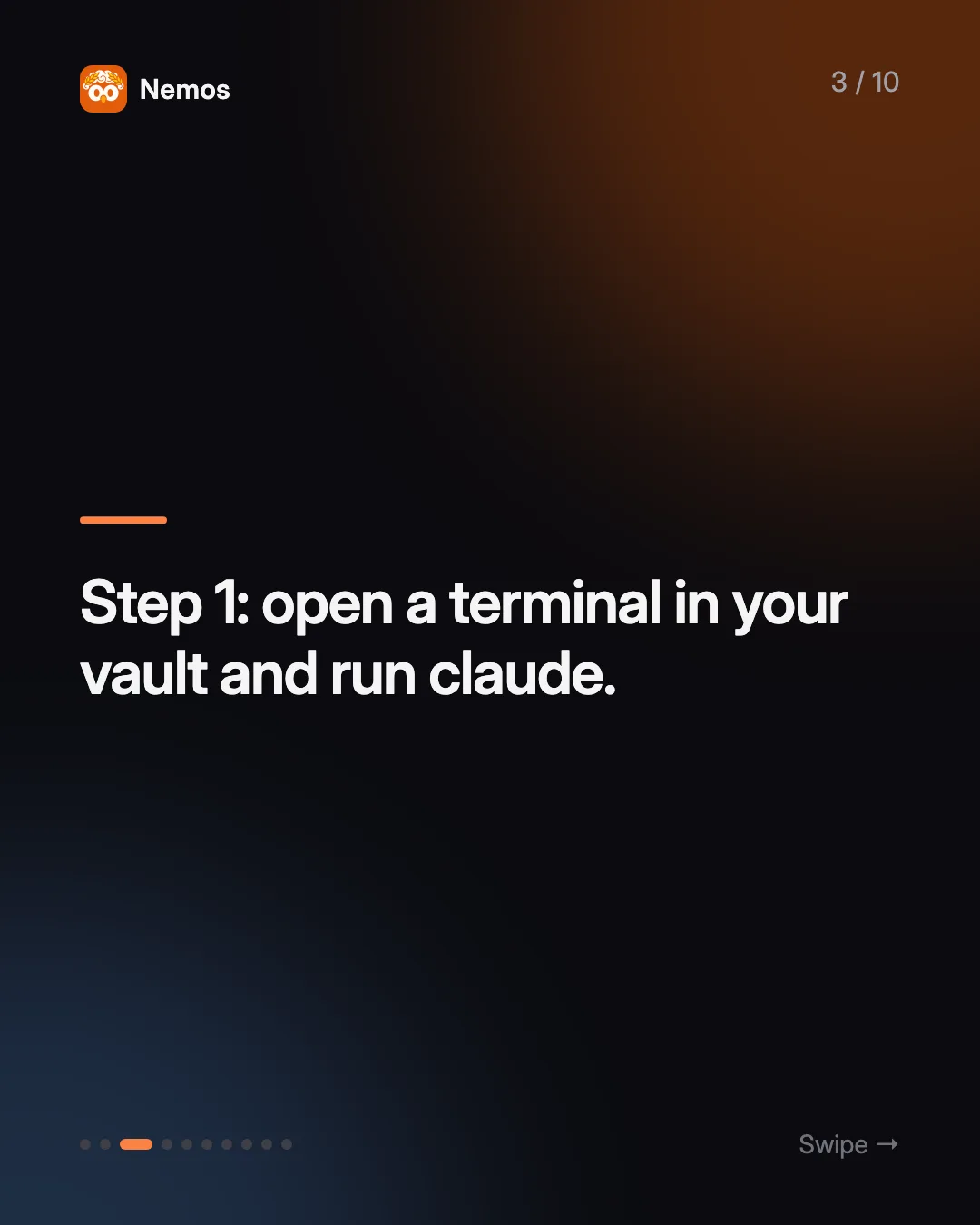
- Open the vault in a terminal. `cd` into the vault folder and run `claude`. Claude Code now works on the files in that folder.
- Let Claude look around. Ask it to list your top-level folders and describe how the vault seems to be organized. This is a good sanity check before you give it rules.
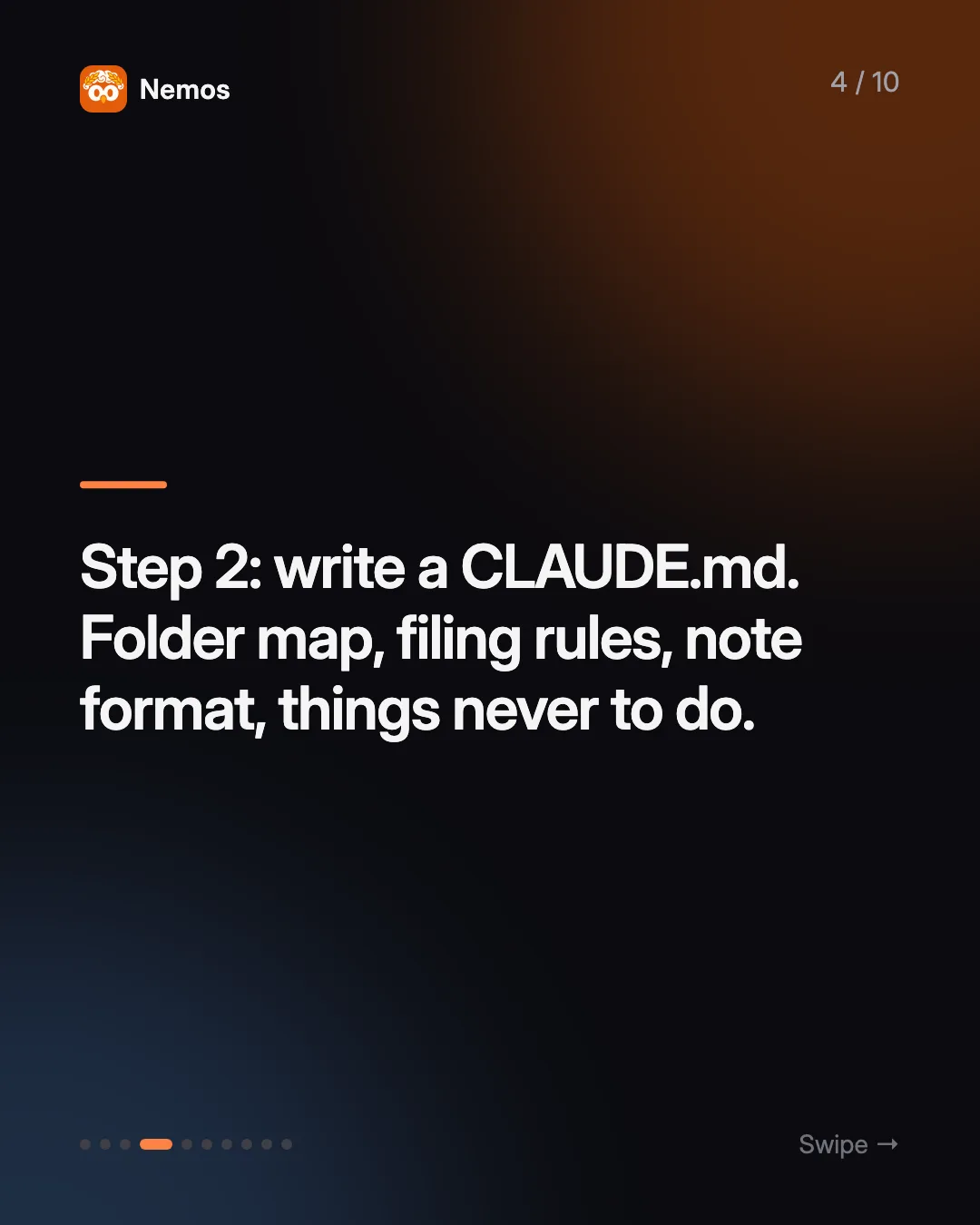
- Write your CLAUDE.md. Create `CLAUDE.md` in the vault root. More on what goes in it below.
- Start with a small job. Ask it to tidy one folder, or to write a weekly summary from your daily notes. Check the diff in Obsidian before trusting it with bigger work.
- Keep a backup. Obsidian Sync, iCloud, or git all work. An agent that can reorganize files can also misplace them, so you want an undo.
Some people prefer the Claude desktop app for this. How-To Geek describes pointing Claude's Cowork mode at a vault path to sort notes into PARA folders and apply tags. The idea is the same: give Claude file access to a Markdown folder and clear instructions.
What should go in your CLAUDE.md?
Think of CLAUDE.md as the orientation page you would hand a new assistant on day one. The Claude Code docs recommend keeping each CLAUDE.md under 200 lines, because longer files use more context and are followed less consistently.
A useful second brain CLAUDE.md covers:
- Folder map. What lives in Projects, Areas, Resources, Archive, Inbox, Daily notes.
- Filing rules. Where a new note goes, and what to do when unsure (usually: Inbox).
- Note format. Frontmatter fields, title style, and a required "Related" section with links.
- Linking rules. Link to an index note for each folder so the graph stays clustered.
- Things never to do. Delete notes, rewrite your journal entries, or move files out of Archive without asking.
- Routines. What "weekly review" or "process inbox" means in your vault.
Short and specific beats long and vague. If Claude keeps getting something wrong, add one line to CLAUDE.md rather than correcting it every session.
If you want Claude to maintain a structured knowledge base on top of your notes, Karpathy's LLM wiki pattern uses exactly this file as its schema. See Karpathy's LLM wiki explained.
What can Claude Code do with your vault?
Once it is oriented, the useful jobs tend to be the ones you never get round to:
- Process the Inbox and file each note in the right folder
- Merge duplicate notes and fix broken links
- Write a weekly review from the past seven daily notes
- Pull every note that mentions a client into one brief
- Turn a pile of meeting notes into a decision log
- Find notes with no links and suggest where they belong
What is missing from a Claude Code second brain?
Mobile capture. Claude Code runs on your computer, and your vault is only as full as your habit of getting things into it. The screenshot of a slide, the voice memo after a call, the link a friend sent you: those land on your iPhone, often in three different apps, and many never make it to the vault.
Obsidian's own mobile app helps with typed notes. It does not read the text inside a screenshot or transcribe a voice memo for you. So the captures that carry the most context are the ones least likely to reach Claude.
How do you add iPhone captures with the Nemos MCP server?
Nemos is a capture app for iPhone, iPad, and Mac. You save screenshots, links, notes, voice recordings, and PDFs, and Nemos runs OCR on screenshots and transcribes recordings, so each item carries searchable text. It syncs through iCloud. Get Nemos on the App Store.
The Nemos MCP server connects Claude Code to that library over the Model Context Protocol. If MCP is new to you, this explainer covers the basics. Setup in Claude Code is one command, using the standard `claude mcp add` syntax:
```bash claude mcp add nemos -- npx -y nemos-mcp ```
Or add it to a `.mcp.json` file in your vault root so it loads whenever you open Claude Code there:
```json { "mcpServers": { "nemos": { "command": "npx", "args": ["-y", "nemos-mcp"] } } } ```
Restart Claude Code, then ask it to "connect to Nemos." That runs the `nemos_connect` tool, which opens Apple's iCloud sign-in. Use the same Apple ID as the Nemos app and complete 2FA once. `nemos_auth_status` confirms the connection, and the token is stored in your OS keychain.
What does the Nemos MCP server actually do?
Being precise matters here, because "connect your notes to AI" can mean many things. The server exposes 36 tools in four groups:
- Retrieve. `search_nemos`, `get_item`, `list_folders`, `get_folder_items`, `get_recent_items`, `get_favorites`, `get_reminders`, `get_smart_collections`, and file tools like `download_item_files` and `export_all`.
- Enrich. `extract_ocr_from_image`, `extract_pdf_text`, `extract_article_text`, and YouTube or reel transcripts (these need `yt-dlp` installed). Summaries and image analysis need an optional AI key.
- Connect. `link_items`, `find_related_by_topic`, `find_duplicate_items`, `generate_knowledge_map`.
- Deliver. `export_to_obsidian` writes a context-pack note into an Obsidian vault. `build_context_pack` and `create_research_brief` (optional AI key) search, fill gaps, and synthesize.
It connects to your own private CloudKit database. Run locally over stdio, your library is read on your machine and is not routed through Nemos servers. It is not a way to type new captures into Nemos from the terminal; capture still happens in the app.
A practical CLAUDE.md line: "When I say *sync phone*, call `get_recent_items`, and for each item not already in the vault, create a note in Inbox with its extracted text, source link, and capture date." That turns a week of iPhone saves into vault notes in one request. For more prompt ideas, see using Claude with your notes over MCP.
FAQ
Does Claude Code work with Obsidian directly? Yes. Obsidian vaults are folders of Markdown files, and Claude Code can read and edit files in the folder where you start it. No plugin is required.
Where does Claude Code store its memory?
In CLAUDE.md files you write, and in an auto memory directory Claude writes at `~/.claude/projects/
Can Claude Code read my iPhone screenshots? Not by itself. With the Nemos MCP server, it can search your Nemos library and read the OCR text Nemos extracted from your screenshots.
Can the Nemos MCP server write into my vault? Yes, `export_to_obsidian` writes a context-pack note into an Obsidian vault. Claude Code can also create notes itself from anything the server returns.
Does this work with Claude Desktop, Cursor, or ChatGPT? The Nemos MCP server works with any MCP client. There is also a hosted HTTPS option for cloud hosts that cannot start a local process.
What do I need to start? Obsidian, Claude Code, and Nemos on your iPhone. Download Nemos on the App Store, save a few things this week, then connect the MCP server and ask Claude to file them.
Taha built Nemos after years of losing screenshots and voice memos across a dozen apps. He writes about on-device AI, personal knowledge management, and building privacy-first tools for iPhone.
@nemosapp
Stop losing things you save.
Nemos remembers every screenshot, voice memo, link, and note — and surfaces them when you need them. Free, private, on-device AI.

Free to download · No credit card · Sign in with Apple