How to Auto-Import Your DEV.to, Mastodon and Bluesky Bookmarks into Nemos
Connect DEV.to, Mastodon and Bluesky to Nemos once, and the posts you save there start landing in their own folders. Setup for each, and how it works.
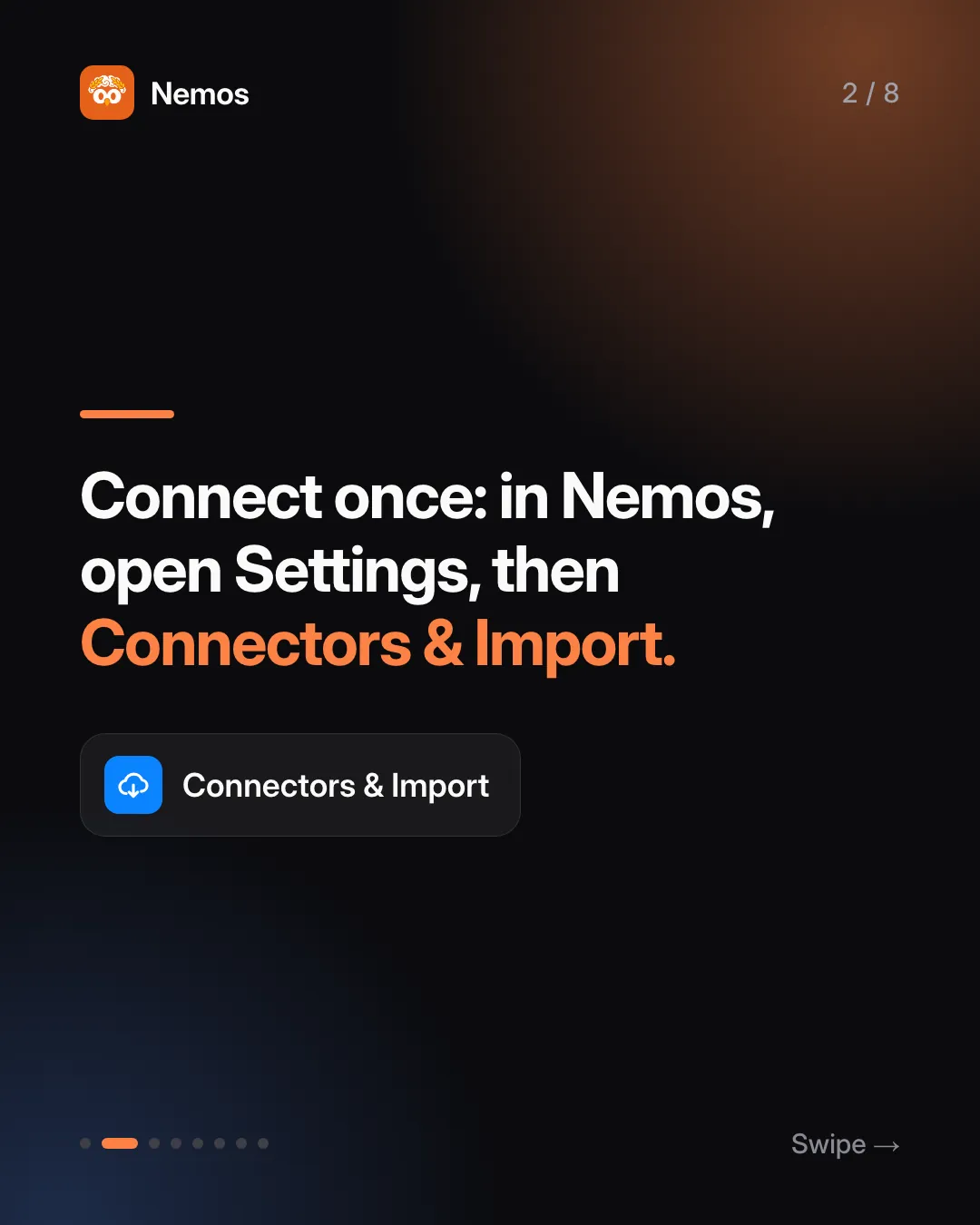
Quick answer: In Nemos, open Settings → Connectors & Import. Tap Connect next to DEV.to, Mastodon or Bluesky and follow the three steps on the setup screen: a personal API key for DEV.to, your server's name for Mastodon, or your handle and an app password for Bluesky. Then turn on Auto-import new files. Nemos makes a folder for that network and checks the network for new saves when you open the app.
Key takeaways:
- Your DEV.to Reading List, Mastodon bookmarks and Bluesky saved posts arrive in Nemos as links, each network in its own folder.
- Auto-import starts the moment you switch it on. It never pulls in your whole history. Import handles older saves, and they land in the same folder.
- Nemos checks for new saves when you open it, at most once every five minutes. With auto-import on, pull down inside a network's folder to check right away.
- Each post comes in once. Re-checks, retries and links you'd already saved don't make duplicates.
- Nemos only reads your saves. Its Mastodon access is limited to bookmarks, and you can revoke any of the three connections from that network's own settings.
What does Nemos import from DEV.to, Mastodon and Bluesky?
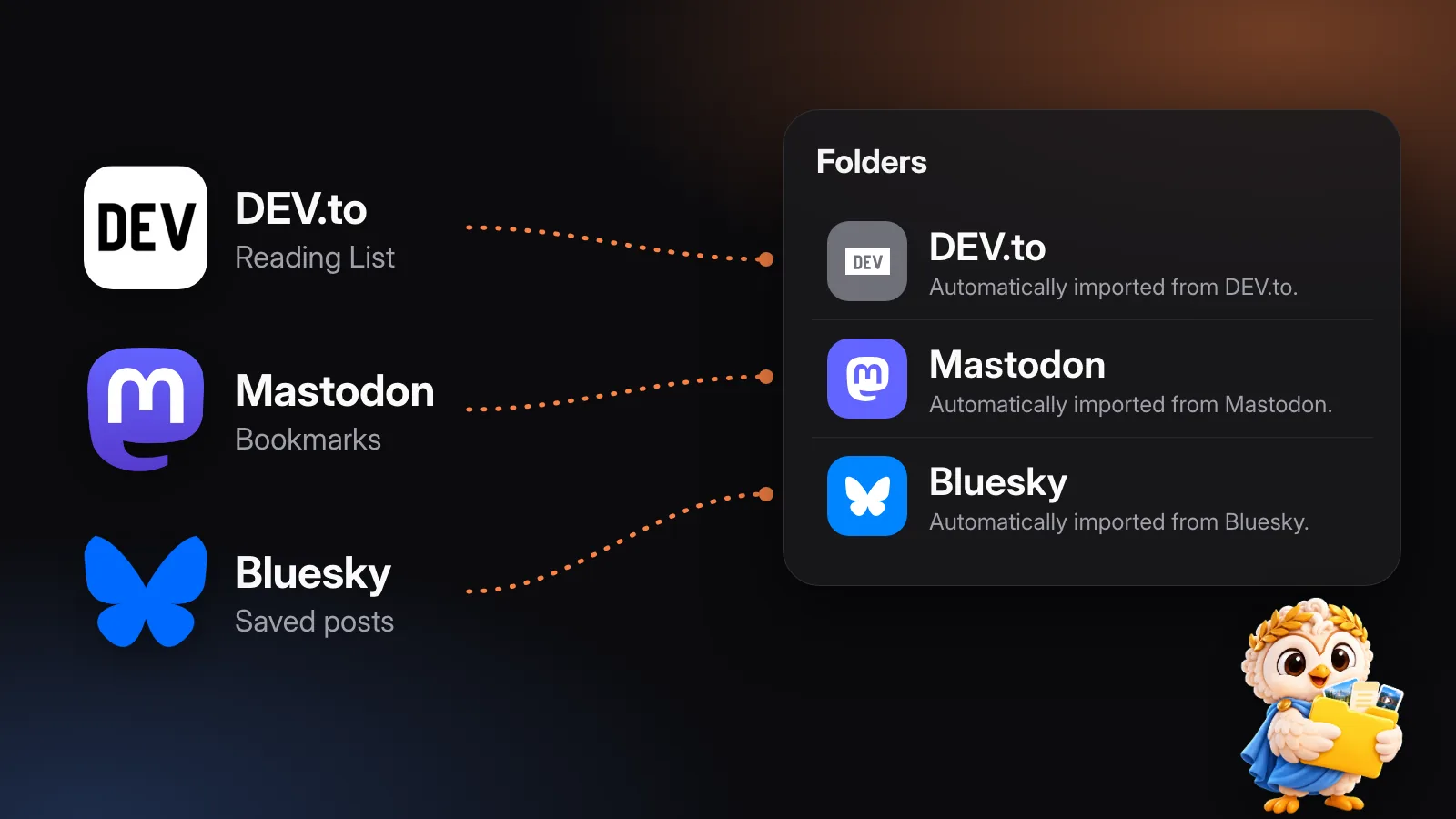
Nemos imports the posts you've chosen to keep on each network: your DEV.to Reading List, your Mastodon bookmarks and your Bluesky saved posts. Each one arrives as a link to the original post, filed in a folder named after the network. That puts it next to your screenshots, notes and voice memos, where search can find it.
| Network | What Nemos imports | How you save a post there |
|---|---|---|
| DEV.to | Your Reading List | The Save button on an article |
| Mastodon | Your bookmarks | Bookmark on a post |
| Bluesky | Your saved posts | The bookmark icon under a post |
Each network keeps its saves in its own list, inside its own app. DEV.to's API describes the Reading List as the articles saved to your account. Mastodon has offered a bookmarks list since version 3.1. Bluesky added private bookmarks, which it calls Saved Posts, in September 2025. Three lists in three apps is how good posts get lost.
Every import is a link card. A DEV.to save opens the article on dev.to, a Mastodon bookmark opens the post's public page, and a Bluesky save opens the post on bsky.app. Nemos then fetches the link preview the same way it does for any link you save. If you're weighing tools for this job, our bookmark manager roundup compares the wider field.
How does auto-import work?
Auto-import starts at the moment you switch it on. Nemos notes what's already in your list without importing it, sets up a folder for the network, and from then on brings in anything new each time you open the app. You never get your whole history dumped in, and you never get the same post twice.
Here's what happens when you flip the switch:
- It takes a snapshot. Nemos lists what's already saved on that network, plus anything you imported from it before, and marks all of it as seen. Nothing in the snapshot is imported.
- It sets up the folder. Nemos creates a folder called DEV.to, Mastodon or Bluesky, with the network's icon and color. If the folder already exists from an earlier try, Nemos reuses it instead of making a second one.
- It checks when you open Nemos. Each time you open Nemos or switch back to it, it asks each network with auto-import on for your latest saves. To go easy on their APIs, it checks at most once every five minutes.
- It imports only what's new. Anything not seen before is imported into the folder, up to 20 posts per check, and marked as seen. If you'd already saved the same link in Nemos, that item is filed into the folder rather than duplicated.
Why a snapshot and not a date? The obvious rule would be "import everything saved after today." The catch is that Mastodon never tells an app when you bookmarked something: a bookmarked post only carries the date it was written. Filter on that, and an old post you saved this morning would be skipped without a word. A record of what's already been seen doesn't have that blind spot. DEV.to and Bluesky do date their saves, but Nemos uses one rule for all three, so they all behave the same way.
Auto-import doesn't run while Nemos is closed. It checks when you open the app, at most every five minutes, so a post you saved a minute ago may not be there yet. To check right away, open the network's folder and pull down to refresh. It's built for a steady trickle of saves, 20 per check at most, so if you save dozens at once, use Import to bring in the whole batch.
How do you connect DEV.to?
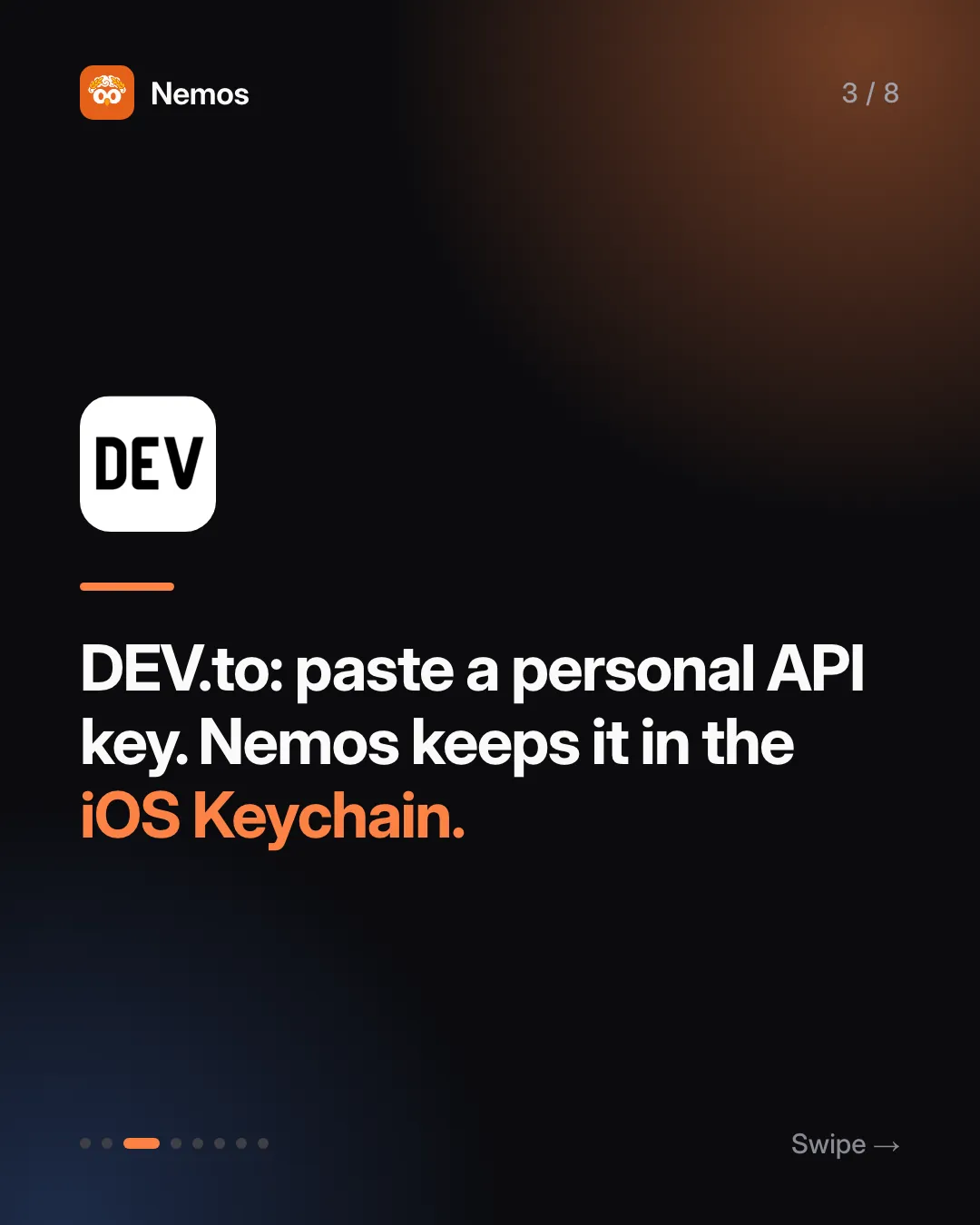
DEV.to connects with a personal API key, because that's how DEV's API lets an app read your account: a key sent with each request. You create the key on DEV.to and paste it into Nemos once.
In Nemos, go to Settings → Connectors & Import and tap Connect next to DEV.to. The setup screen that opens walks you through three steps:
- Open DEV.to → Settings → Extensions. The Open DEV.to settings button on the setup screen takes you straight there.
- Under DEV Community API Keys, generate a new key and name it Nemos, so you'll recognize it later.
- Paste the key into the API key field and tap Connect. Nemos checks it with DEV.to once, then stores it in the iOS Keychain.
When the row shows Connected, switch on Auto-import new files. Your DEV.to folder appears, and articles you save on DEV.to from then on start arriving in it when you open Nemos.
Nemos uses the key for exactly two things: confirming whose key it is, and reading your Reading List. The key itself can do more than that, so if you stop using the connection, revoke it in the same DEV Community API Keys section where you created it.
How do you connect Mastodon?
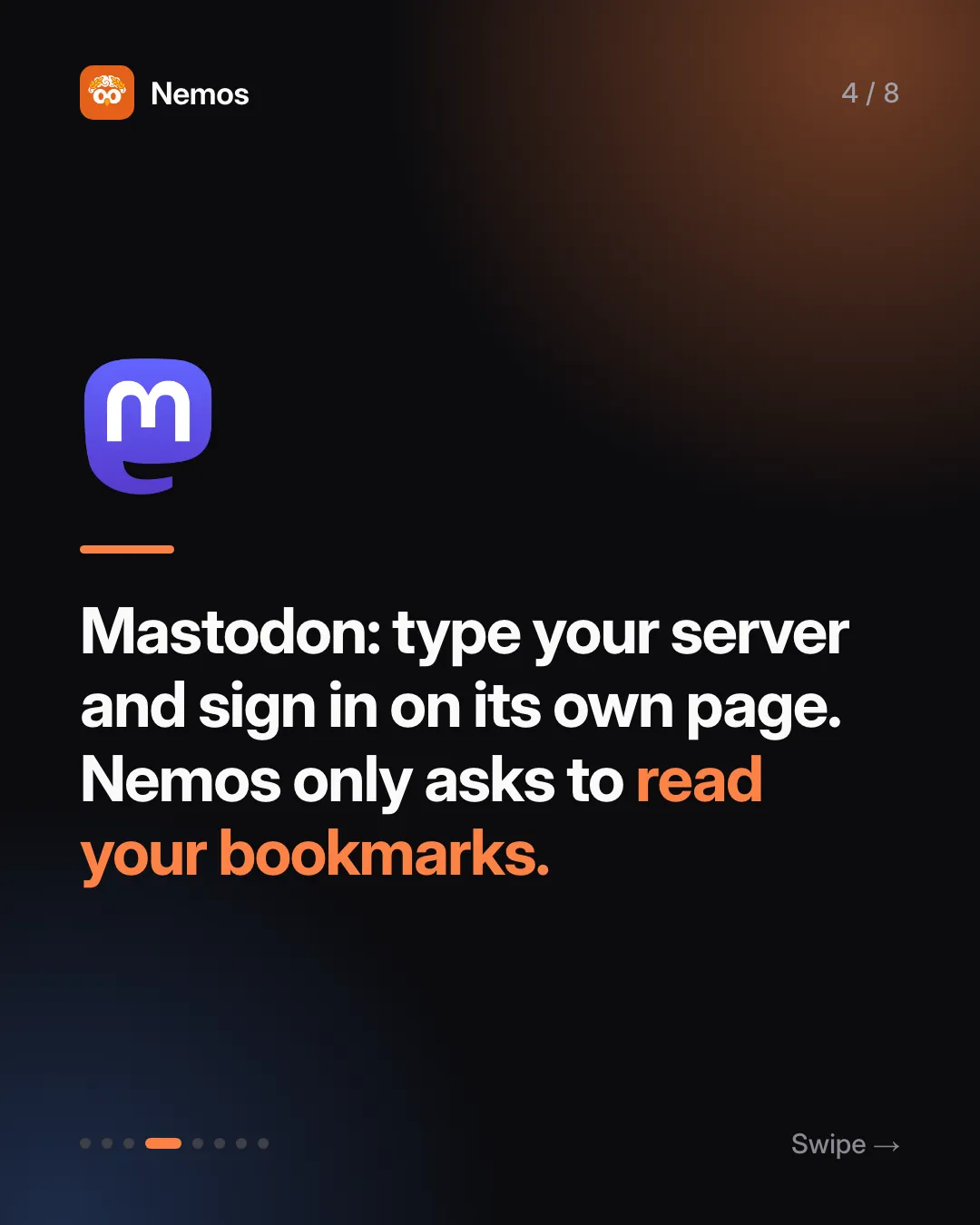
Mastodon connects through your own server's sign-in page, so Nemos never sees your password. Because Mastodon is a network of independent servers, Nemos registers itself with your server when you connect. Then it asks for one permission only: reading your bookmarks.
Tap Connect next to Mastodon in Connectors & Import, then:
- Type your Mastodon server, for example mastodon.social. Use the server's name only, not your full @name@server handle.
- Tap Connect. Your server's own page opens, where you sign in and allow Nemos to read your bookmarks.
- Nemos registers itself on your server as part of this. Your password is never asked for and never stored.
When the row shows Connected, switch on Auto-import new files.
Technically, this is OAuth with PKCE, the standard app sign-in Mastodon's documentation recommends: you approve access on your server's own page, and Nemos receives a token instead of your password. The one permission it requests is read:bookmarks, the scope Mastodon requires to view your bookmarks. With it, Nemos can't post, follow anyone or read your messages. The access token, your server's name and the app credentials your server issued are stored in the iOS Keychain.
To revoke that access later, sign in on your server's website and remove Nemos under Preferences → Account → Authorized apps.
How do you connect Bluesky?
Bluesky connects with your handle and an app password, a separate password Bluesky lets you create for each app you use. Nemos uses it once to open a session, keeps only the session tokens, and discards the app password. You don't need your main Bluesky password at all.
Tap Connect next to Bluesky in Connectors & Import, then:
- In Bluesky, open Settings → App Passwords. It sits under Privacy and Security, and the Open App Passwords button on the Nemos setup screen goes straight there.
- Create an app password named Nemos. Nemos doesn't need your direct messages, so leave that option off.
- Enter your handle and the app password, then tap Connect. The password is exchanged once for a session, and the password itself is never stored.
When the row shows Connected, switch on Auto-import new files.
Your handle looks like you.bsky.social. If you type only the first part, Nemos adds .bsky.social for you.
Nemos signs in through bsky.social, looks up the server that hosts your account, and stores the session tokens in the iOS Keychain. That covers accounts hosted by Bluesky; an account on a self-hosted server can't connect this way. Bluesky's access tokens are short-lived, so Nemos renews them as it goes. If the session ends for good, for example because you deleted the app password, connect again with a new one.
Where do your imported posts end up?
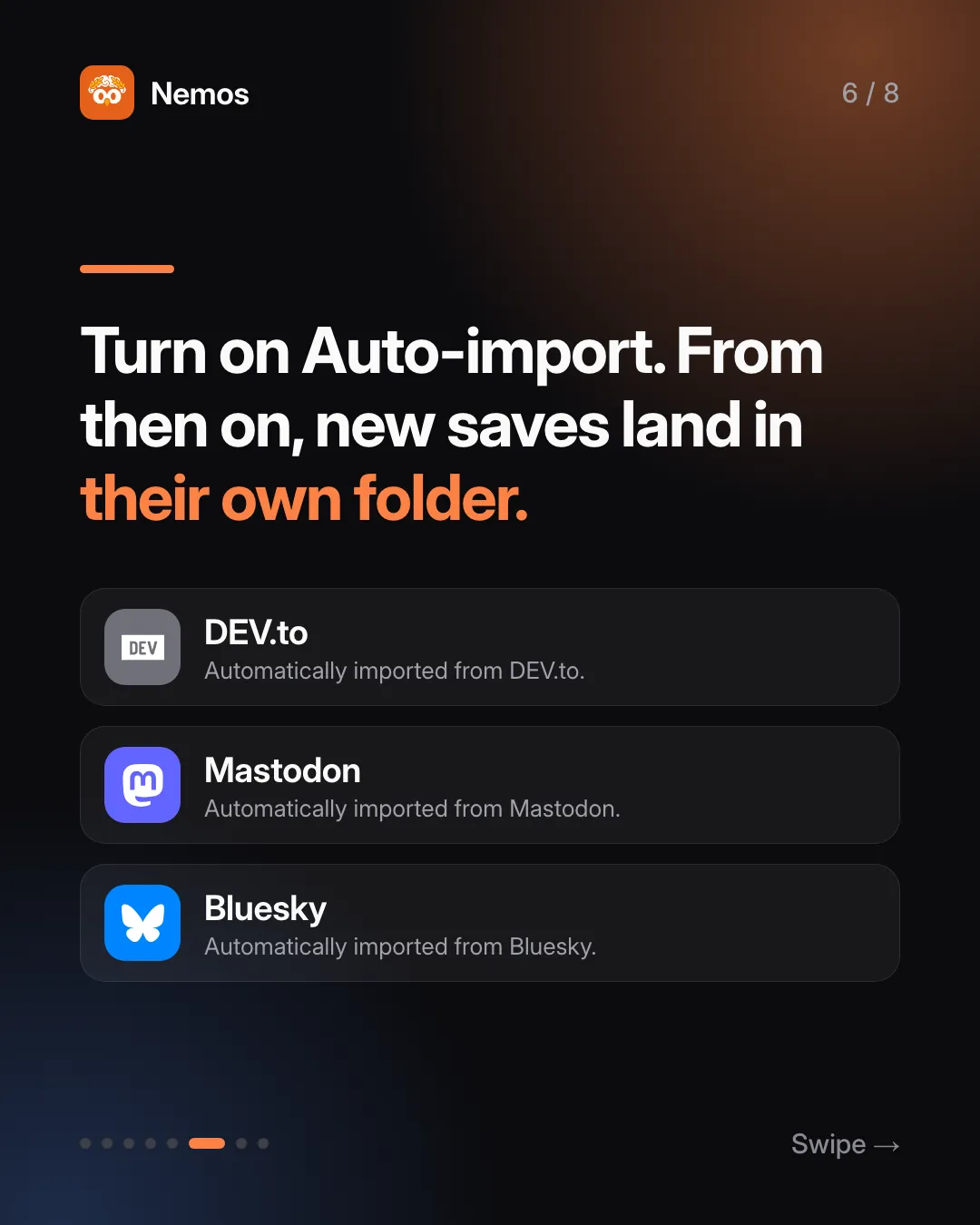
Each network gets one folder in Nemos, named DEV.to, Mastodon or Bluesky and marked with the network's icon and color. Auto-import puts new saves there, and so does the manual Import button. Everything from one network stays in one place, however it arrived.
To bring in posts you saved before turning auto-import on, use the button on the network's row: Import Reading List for DEV.to, Import bookmarks for Mastodon, or Import saved posts for Bluesky. You select the ones you want, and they land in the same folder. Clearing out an old read-later app too? Here's where Pocket's readers went in 2026.
A few more things behave the way you'd hope:
- No duplicate folders. Switching auto-import off and on, or retrying after a failed attempt, reuses the existing folder. You won't end up with a second Mastodon folder.
- Turning it off keeps the folder. Switching auto-import off stops the automatic checks. The folder and everything in it stay.
- Unsaving doesn't delete. Removing a bookmark on the network doesn't remove the post from Nemos. It stays until you delete it in Nemos.
- Disconnecting keeps your posts. Your imported items stay in your library. Nemos deletes the stored key or tokens and stops importing until you reconnect.
Is it safe to connect your accounts to Nemos?
Nemos stores your credentials on your iPhone, in the iOS Keychain. The connection runs directly between your iPhone and DEV.to, your Mastodon server or Bluesky. Nemos doesn't run a server that holds your tokens or your saves, and it only ever reads: it never posts, likes, follows or changes anything on your accounts.
| Network | What Nemos keeps | How to revoke it |
|---|---|---|
| DEV.to | Your personal API key | Revoke the key in DEV.to → Settings → Extensions |
| Mastodon | A token that can only read bookmarks | Remove Nemos from Authorized apps on your server |
| Bluesky | Session tokens, never the app password | Delete the app password in Bluesky's settings |
Connections are stored on the device where you made them and don't sync, so connect again on your iPad if you want imports there too. Disconnecting a network deletes its entry, and deleting your Nemos account clears all of them.
The posts you import become part of your Nemos library, which syncs through your own iCloud. For the full picture of what is stored and processed where, read the Nemos privacy policy.
What else can Nemos import automatically?
Nemos can also auto-import from four other sources. Each follows the same rule as the social connectors: it picks up only what's new from the moment you turn it on, never backwards.
- Dropbox: new files, including ones you drop into subfolders.
- GitHub: repositories you star, saved as links.
- Notion: pages you share with the Nemos connection, as notes and links.
- Screenshots: new screenshots, once you turn on Auto-import screenshots in Settings. Our guide to organizing screenshots on iPhone covers what happens after they land.
Google Drive and iCloud Drive connect too, for picking files to import by hand. For any network without a connector, the Share Sheet still saves a post to Nemos.
FAQ
Does auto-import bring in everything I've ever saved? No. It starts from the moment you turn it on, and Nemos skips what was already in your list. To bring in older saves, tap Import Reading List, Import bookmarks or Import saved posts on the network's row and pick what you want. They land in the same folder as everything else from that network.
How often does Nemos check for new bookmarks? Every time you open Nemos or switch back to it, at most once every five minutes. It doesn't check while the app is closed. With auto-import on, open the network's folder in Nemos and pull down to refresh to check right away.
Will removing a bookmark on Mastodon or Bluesky delete it from Nemos? No. Once a post is in Nemos, it stays until you delete it in Nemos. Unsaving it on DEV.to, Mastodon or Bluesky doesn't touch your library.
Can Nemos post or change anything on my accounts? Nemos only reads your saves. On Mastodon it can't do more, because the only permission it requests is read:bookmarks. A DEV.to API key and a Bluesky app password are broader by design, so revoke them from the network's settings when you stop using the connection.
Do I need to connect again on another device? Yes. Connections are stored in the Keychain of the device where you made them, and they don't sync to your other devices. The posts you've already imported are part of your library, which syncs through iCloud.
What happens if I disconnect a network? Your imported items stay in your library. Nemos deletes the stored key or tokens from your device and stops importing from that network. To import more later, connect again.
What do I need to get started? Nemos on your iPhone and an account on DEV.to, Mastodon or Bluesky. Download Nemos on the App Store, connect the networks you use, and turn on auto-import. The next post you save will be waiting in its folder.
Taha built Nemos after years of losing screenshots and voice memos across a dozen apps. He writes about on-device AI, personal knowledge management, and building privacy-first tools for iPhone.
@nemosapp
Stop losing things you save.
Nemos remembers every screenshot, voice memo, link, and note — and surfaces them when you need them. Free, private, on-device AI.

Free to download · No credit card · Sign in with Apple