NotebookLM on iPhone: How to Feed It Your Screenshots, Voice Notes, and Links
NotebookLM (now Gemini Notebook) is great at studying sources. Here is how to get your iPhone screenshots, voice notes, links, and PDFs into it.
Quick answer: On iPhone, the NotebookLM app accepts PDFs, websites, YouTube links, audio files, and copied text, and it shows up in the iOS Share Sheet. For screenshots, either upload the images on the web version or paste the text read from them. For voice notes, upload the audio or paste the transcript. A capture app like Nemos keeps all of that searchable in one place so you can pick what goes into each notebook.
Key takeaways: - NotebookLM is now called Gemini Notebook. Google says it is the same product, with the same notebooks and Audio Overviews. - The iPhone app supports five source types: PDF, website, YouTube, audio, and copied text. Images need the web version. - Each source can be up to 500,000 words or 200MB, and free notebooks hold up to 50 sources. - NotebookLM studies a set of sources. A second brain collects everything first. They do different jobs and work well together.
Is NotebookLM still called NotebookLM?
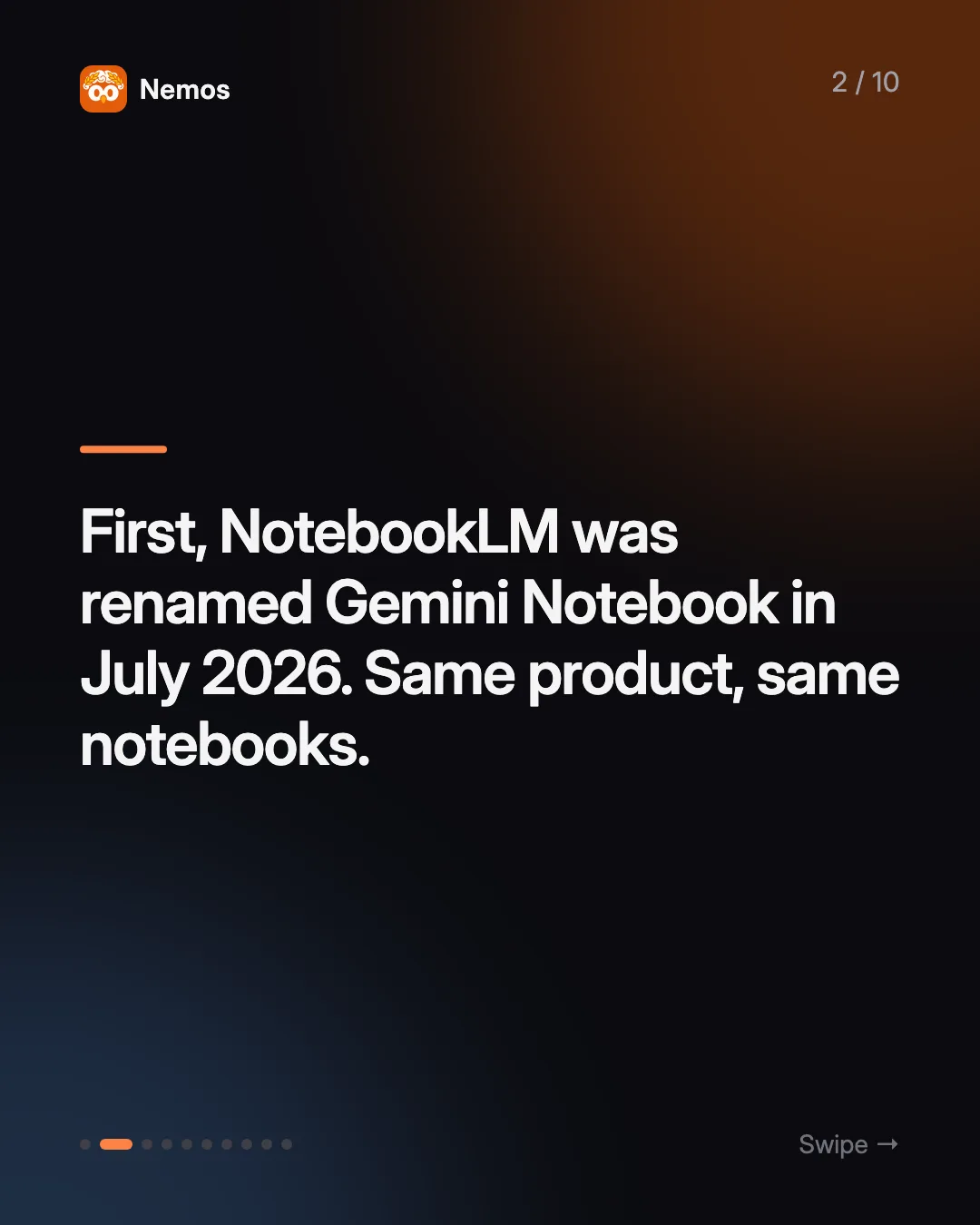
Not officially. On July 16, 2026, Google announced that NotebookLM is now Gemini Notebook. The company describes it as a rename rather than a replacement: existing notebooks and Audio Overviews carry over, and it remains a standalone research tool. The update also added code execution inside notebooks and syncing with the Gemini app. Google said at the time that more than 30 million people use it.
Most people still search for "NotebookLM", and the App Store listing is still findable under that name, so this guide uses both.
What is NotebookLM good at?
NotebookLM is a source-grounded AI. You give it documents, and it answers questions using only those documents, with citations back to the passage it used. That makes it strong for:
- Studying. Upload lecture slides, readings, and your recordings, then ask for a summary, a quiz, or flashcards.
- Research synthesis. Put ten reports in one notebook and ask where they disagree.
- Audio Overviews. Turn a pile of sources into a podcast-style conversation you can listen to on a walk.
- Slide decks. The rising search "notebooklm ppt" comes from this. You can generate a Slide Deck and download it as PDF or PowerPoint (.pptx). XDA Developers notes that the same update added prompt-based revisions, so you can ask for changes to a slide instead of regenerating the deck.
What it does not try to do is capture. It has no reason to know about the screenshot you took at lunch or the voice note you recorded in the car, unless you put them there.
What can you add to NotebookLM from an iPhone?
The two versions differ, which trips people up.
On the web, Google's source list includes PDFs, Google Docs, Slides and Sheets, Word and PowerPoint files, Markdown, text, CSV, ePub, web URLs, public YouTube videos, audio files (MP3, WAV and others, transcribed on import), and images including PNG, JPEG, and HEIC. Each source can be up to 500,000 words or 200MB, and free users get up to 50 sources per notebook.
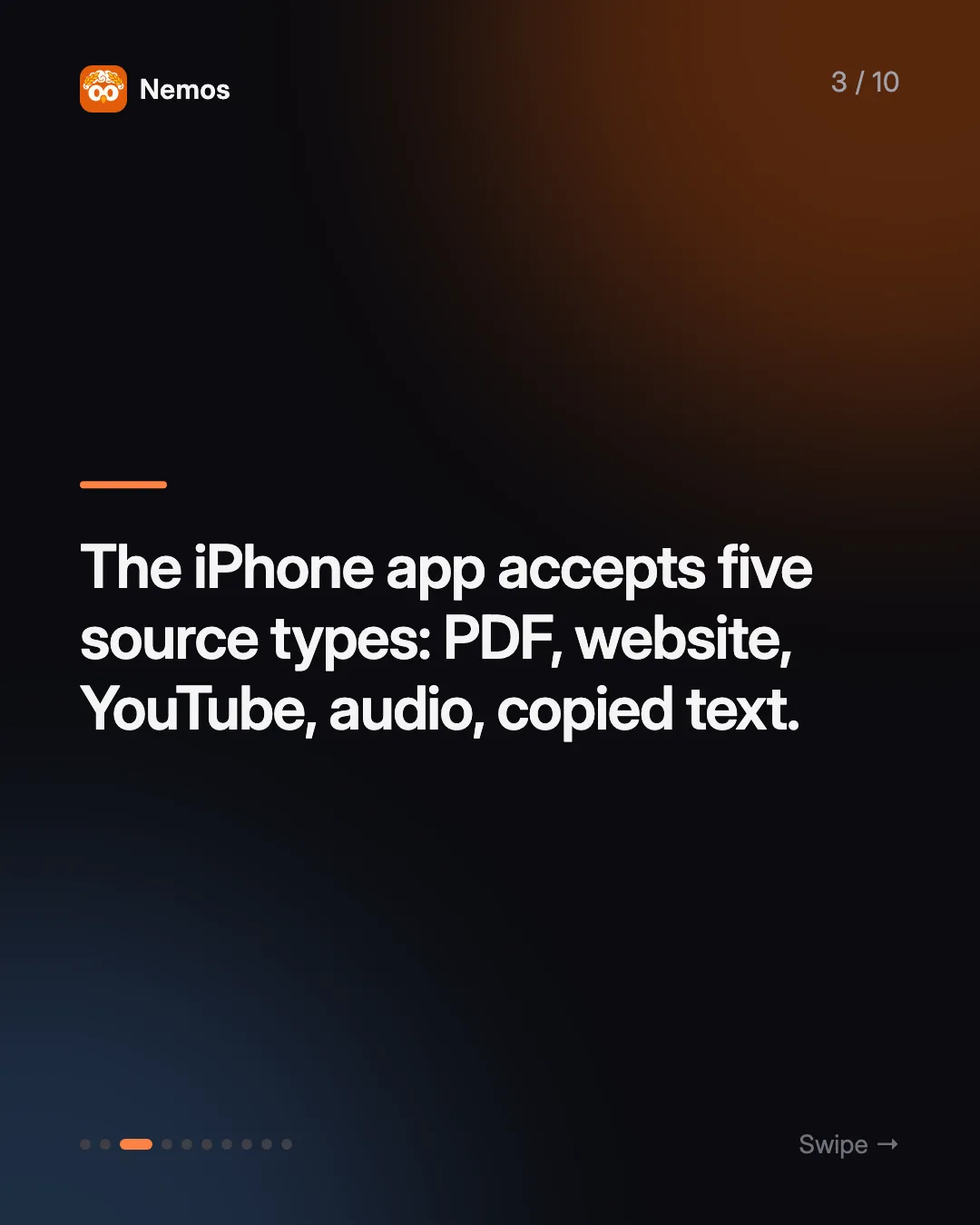
In the iPhone app, the help page for the mobile app says only PDF, website, YouTube, audio, and copied text are supported. The app appears in the iOS Share Sheet, so from Safari, Files, or YouTube you can tap Share, choose the app, and add the item to an existing notebook.
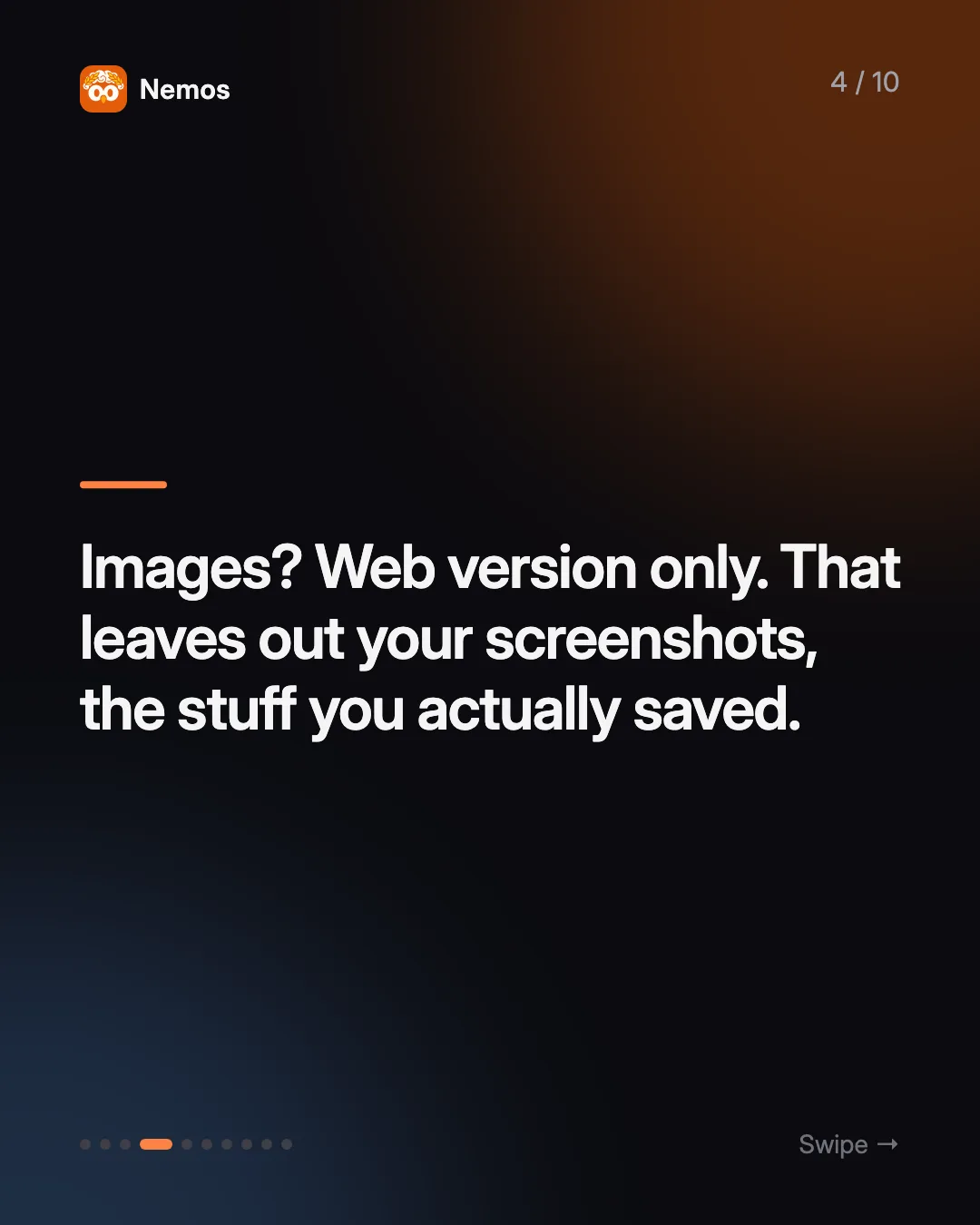
The gap that matters for most iPhone users is images. Your screenshots, which are often the richest record of what you saw, cannot go in from the phone app as images.
How do I get my screenshots into NotebookLM?
You have two options, and the second is usually faster.
- Upload the images on the web. Open NotebookLM in a browser on your Mac or iPad, add a source, and choose the screenshots. Google notes that some image types work less well than others, so check that it picked up the text.
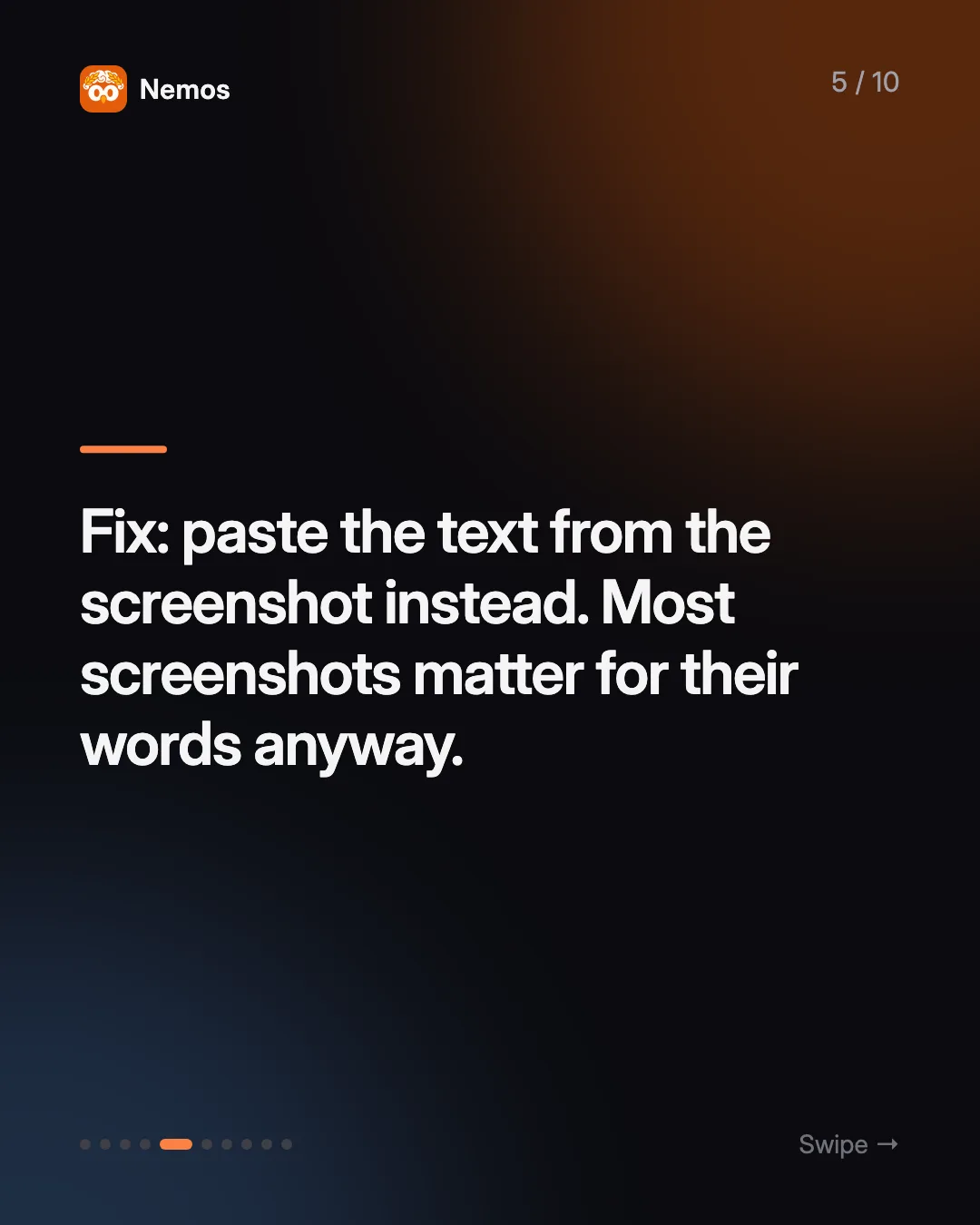
- Paste the text instead of the image. Most screenshots are useful because of the text in them: a booking reference, a slide, a quote, a price. If that text has already been read, paste it in as a "copied text" source. You can do this from the iPhone app.
This is where a capture app earns its place. Nemos reads the text in your screenshots with OCR as they come in, so every screenshot is already searchable by what it says. Search Nemos for the topic, copy the text from the screenshots you need, and paste it into a notebook as one source. If your camera roll is the problem to start with, our guide on how to organize screenshots on iPhone walks through the cleanup.
How do I get voice notes and recordings into NotebookLM?
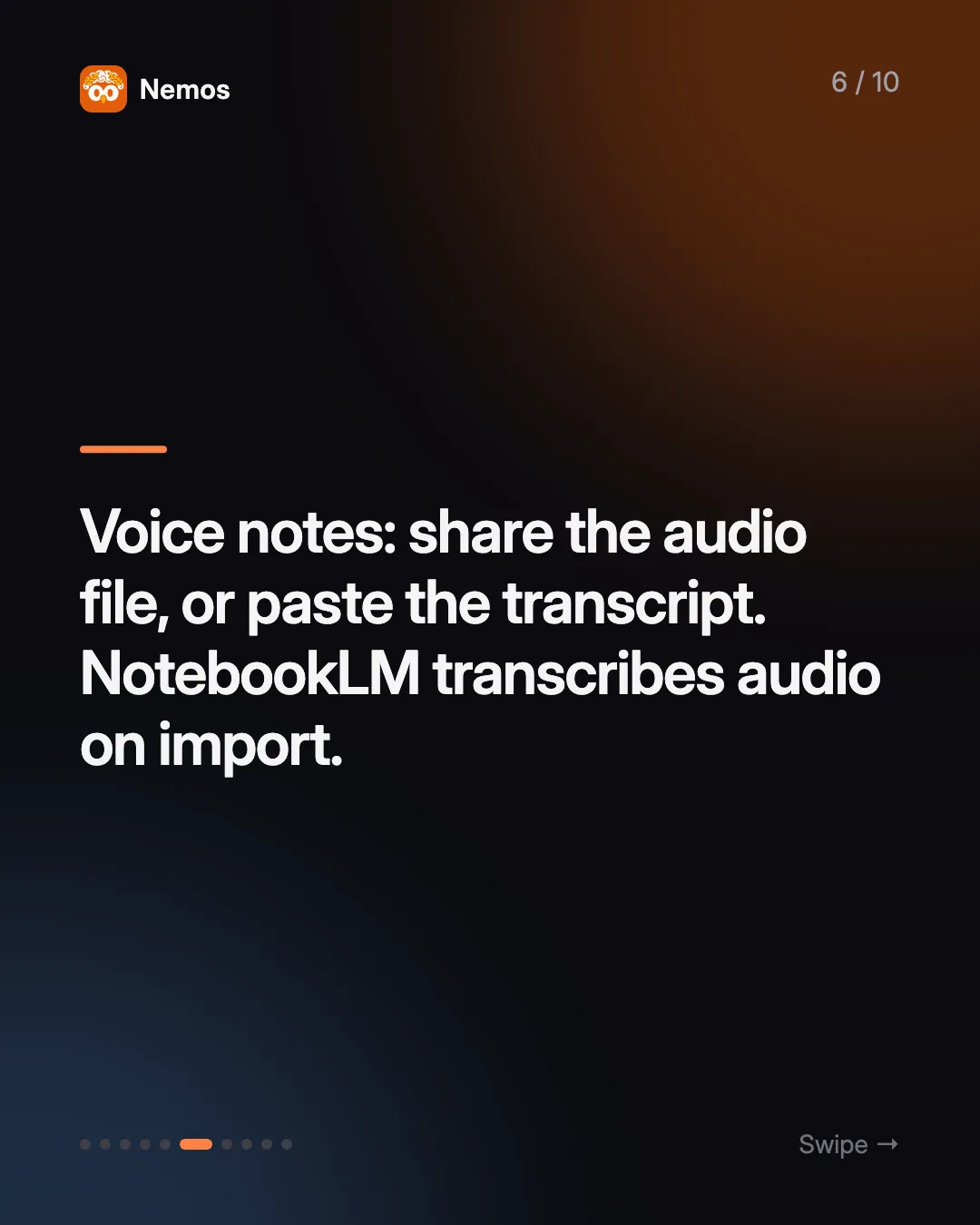
Audio is supported on both web and mobile. NotebookLM transcribes the file when you import it and saves the text as the source.
- From Voice Memos: share the recording to the Files app, then add it as an audio source in a notebook.
- From a transcript you already have: copy the transcript and add it as copied text. This is quicker for long recordings and lets you trim the parts you do not need first.
In Nemos, voice recordings (including ones made on the Apple Watch companion) are transcribed, and you can copy the transcript text out. For a lecture series, that means you can collect a term's worth of recordings in one folder in Nemos, then paste the transcripts for one topic into a study notebook the week before an exam. For more on getting clean transcripts, see voice memo transcription on iPhone.
How do I add links and PDFs?
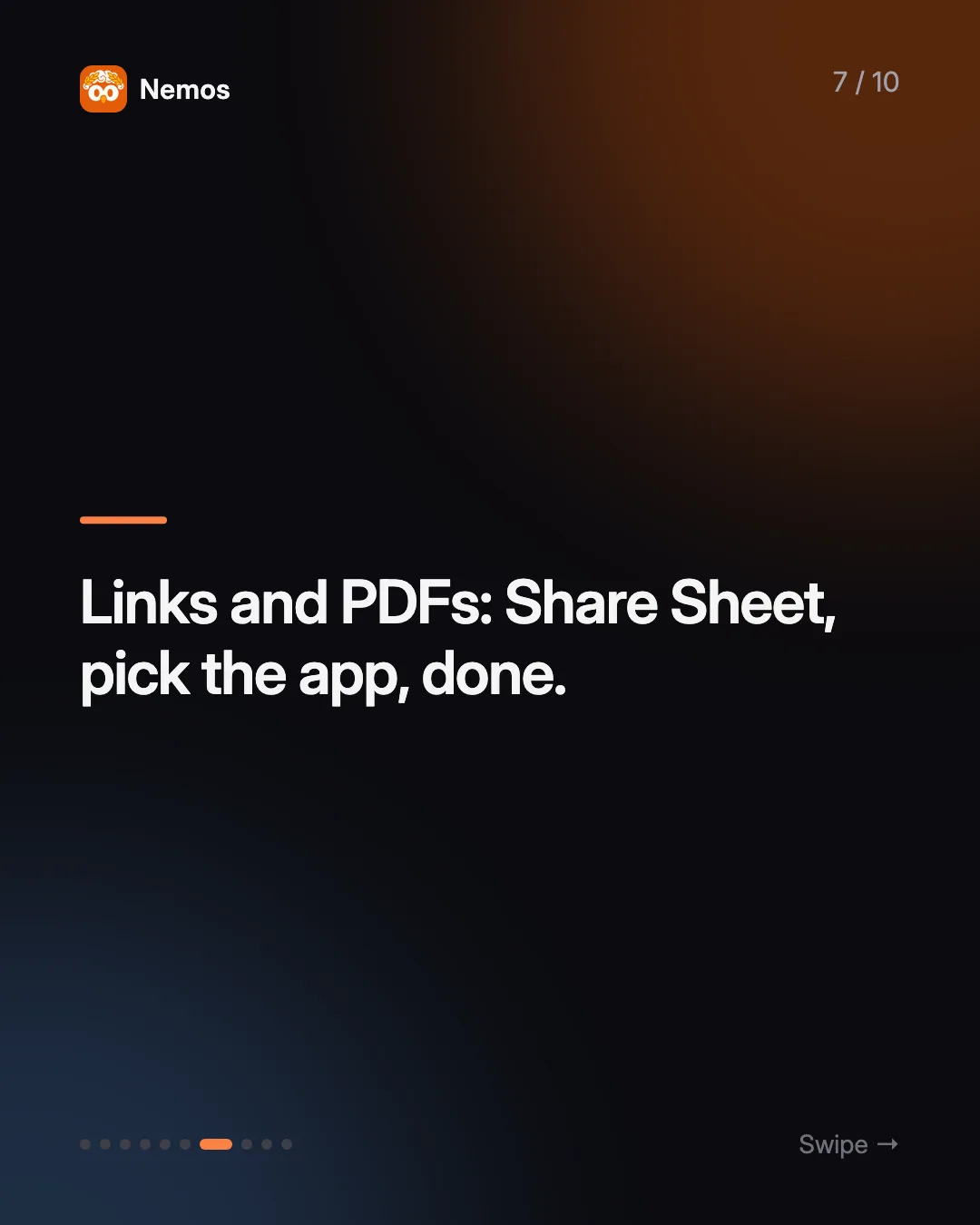
These are the easy ones. From Safari or the Files app, use the Share Sheet and pick the NotebookLM app. It accepts both on iPhone. YouTube links work too, as long as the video is public; NotebookLM uses the captions.
If you save links and PDFs into Nemos during the week, the useful habit is to decide at the end of the week what deserves to be studied. Search Nemos for the project, open the links and PDFs that matter, and share those into one notebook. You end up with a notebook of ten good sources rather than fifty loosely related ones, and the answers get better for it.
Can an AI assistant pull my Nemos library together for NotebookLM?
Yes, if you use Claude or ChatGPT on a computer. Nemos ships an MCP server that lets an AI assistant search and read your Nemos library with your permission. One of its tools, `build_context_pack`, bundles the captures related to a topic into a single block of text. Ask the assistant to build a context pack on, say, "Q3 pricing research", review it, and paste it into a notebook as one copied-text source. Our guide to the Nemos MCP server covers setup.
This works well when the material is scattered across screenshots, notes, and transcripts that would take twenty minutes to collect by hand.
Should I use NotebookLM as my second brain?
It can work for a narrow use: one notebook per course or project, with its sources kept together. As a general second brain, it runs into limits:
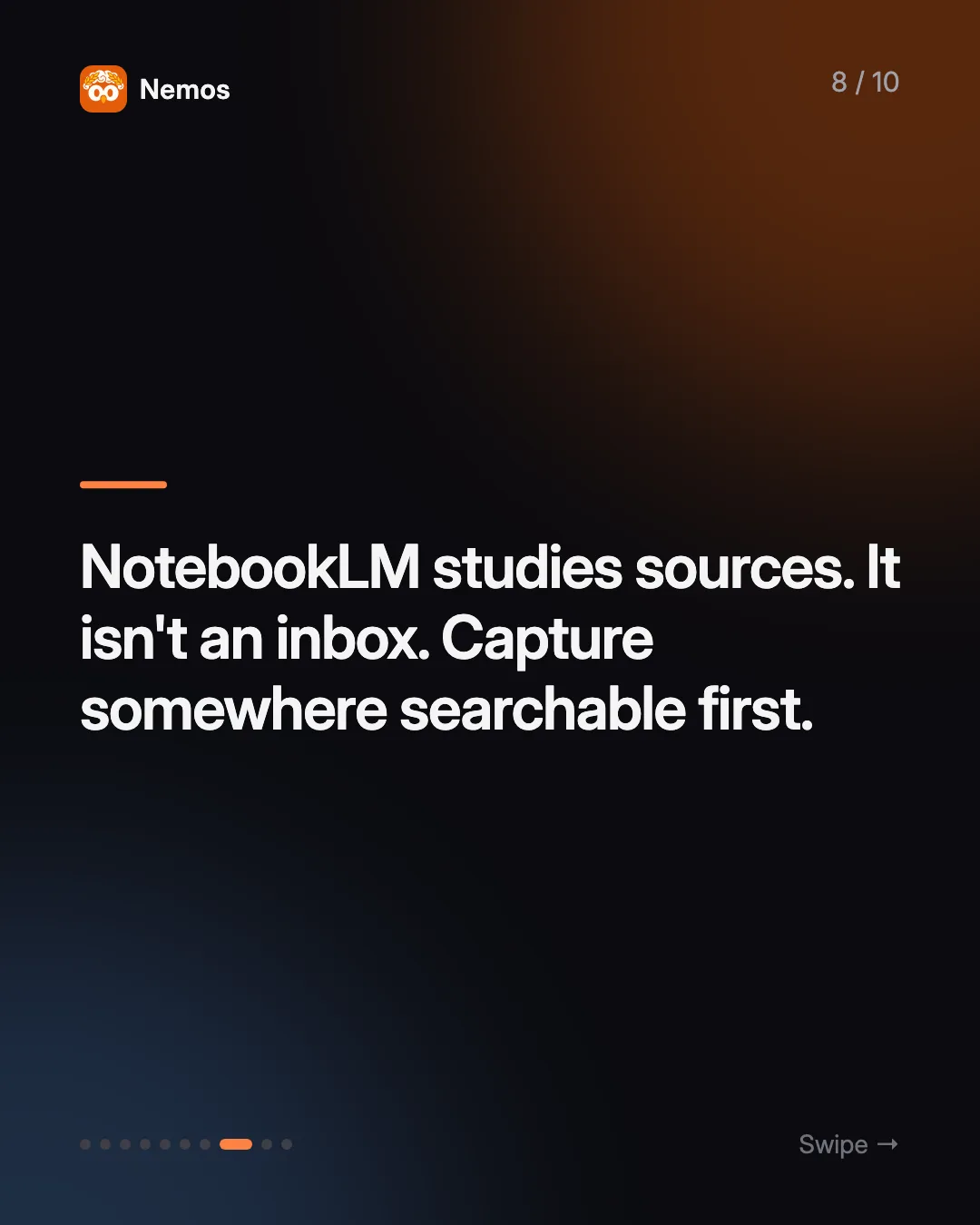
- It is a study tool, not an inbox. Adding a single screenshot or a ten-second idea is slow compared with a capture app.
- Notebooks are separate. A question in one notebook does not see the sources in another.
- Source caps. Fifty sources per notebook on the free tier is plenty for a course and tight for a year of notes.
The split that works for most people is simple. A capture app is where things land the moment you see them, and it keeps everything searchable. NotebookLM is where you take a chosen batch of that material when you want to think about it hard. If you are new to the idea, what a second brain is explains the capture-first approach.
| Job | Capture app (e.g. Nemos) | NotebookLM / Gemini Notebook |
|---|---|---|
| Save a screenshot in one tap | Yes | Images only via web |
| Transcribe a voice note | Yes | Yes, on import |
| Search everything you saved | Yes | Within one notebook |
| Answer questions with citations | Not its focus | Its main strength |
| Audio Overviews, quizzes, slide decks | No | Yes |
FAQ
Is NotebookLM free? NotebookLM has a free tier; Google's help pages say free users can add up to 50 sources per notebook, with higher limits on paid tiers. Check Google's current plans for pricing, which we are not quoting here.
Can NotebookLM read screenshots? On the web version, yes: images such as PNG, JPEG, and HEIC are supported sources. The iPhone app does not accept images, so paste the text from the screenshot instead, or upload it from a browser.
How do I make a PowerPoint in NotebookLM? Add your sources, choose Slide Deck in the Studio panel, then use the three-dot menu to download it as PDF or PowerPoint (.pptx). You can revise individual slides with a text instruction before downloading, within Google's revision quota.
What is the difference between NotebookLM and Gemini Notebook? They are the same product. Google renamed NotebookLM to Gemini Notebook on July 16, 2026, and kept existing notebooks and features.
What is the best way to collect sources for NotebookLM on iPhone? Keep a capture app as your inbox for screenshots, voice notes, links, and PDFs, then move a chosen batch into a notebook when you want to study it. Nemos does the collecting and makes it searchable by the text inside screenshots and recordings. [Get Nemos on the App Store](https://apps.apple.com/app/id6791134304).
Taha built Nemos after years of losing screenshots and voice memos across a dozen apps. He writes about on-device AI, personal knowledge management, and building privacy-first tools for iPhone.
@nemosapp
Stop losing things you save.
Nemos remembers every screenshot, voice memo, link, and note — and surfaces them when you need them. Free, private, on-device AI.

Free to download · No credit card · Sign in with Apple